 Echo Page
How to use Echo Page
Everything the diary can do, from your first entry to a reflection a year later. Read it through or jump to the chapter you need.
Cover and spread
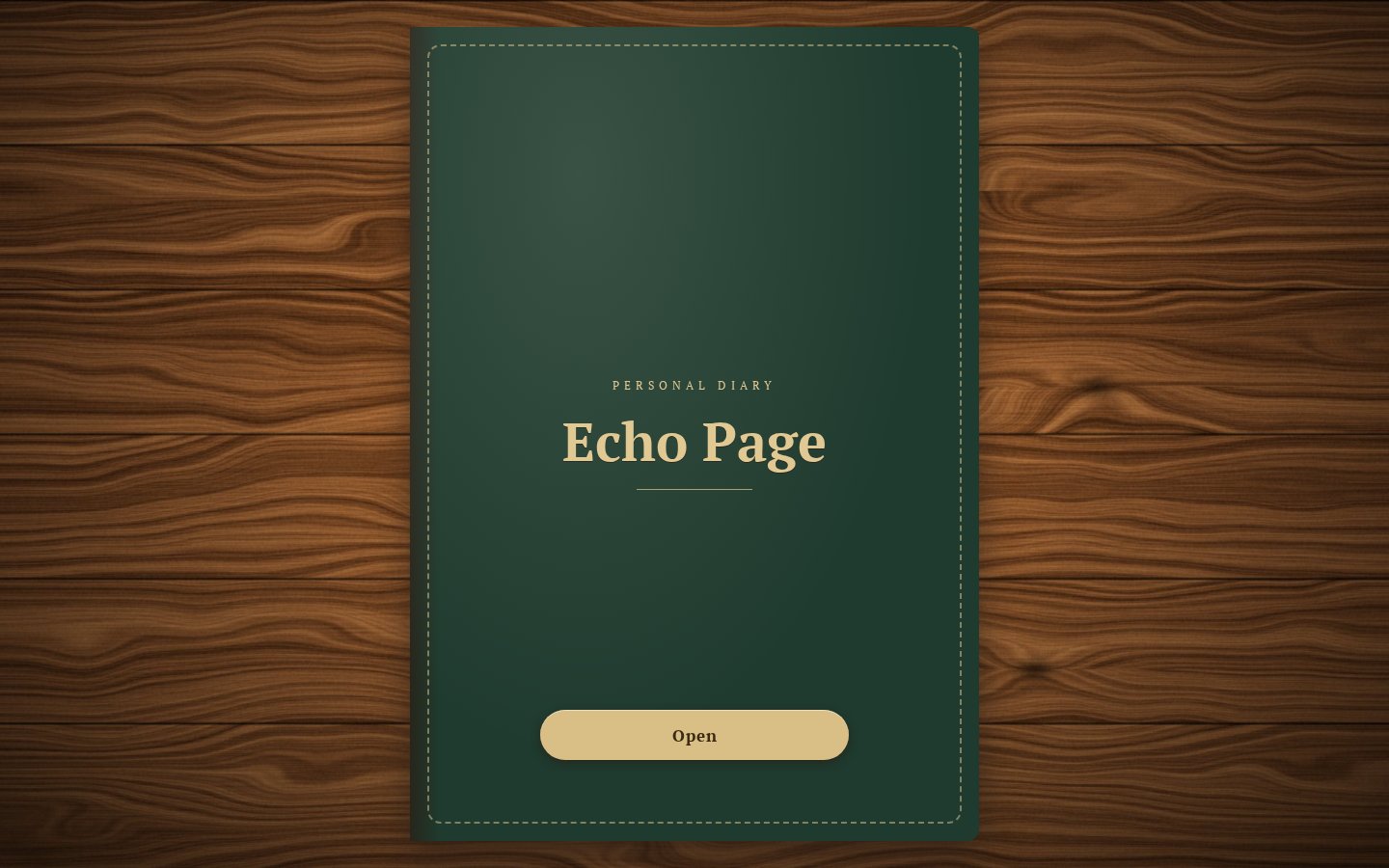
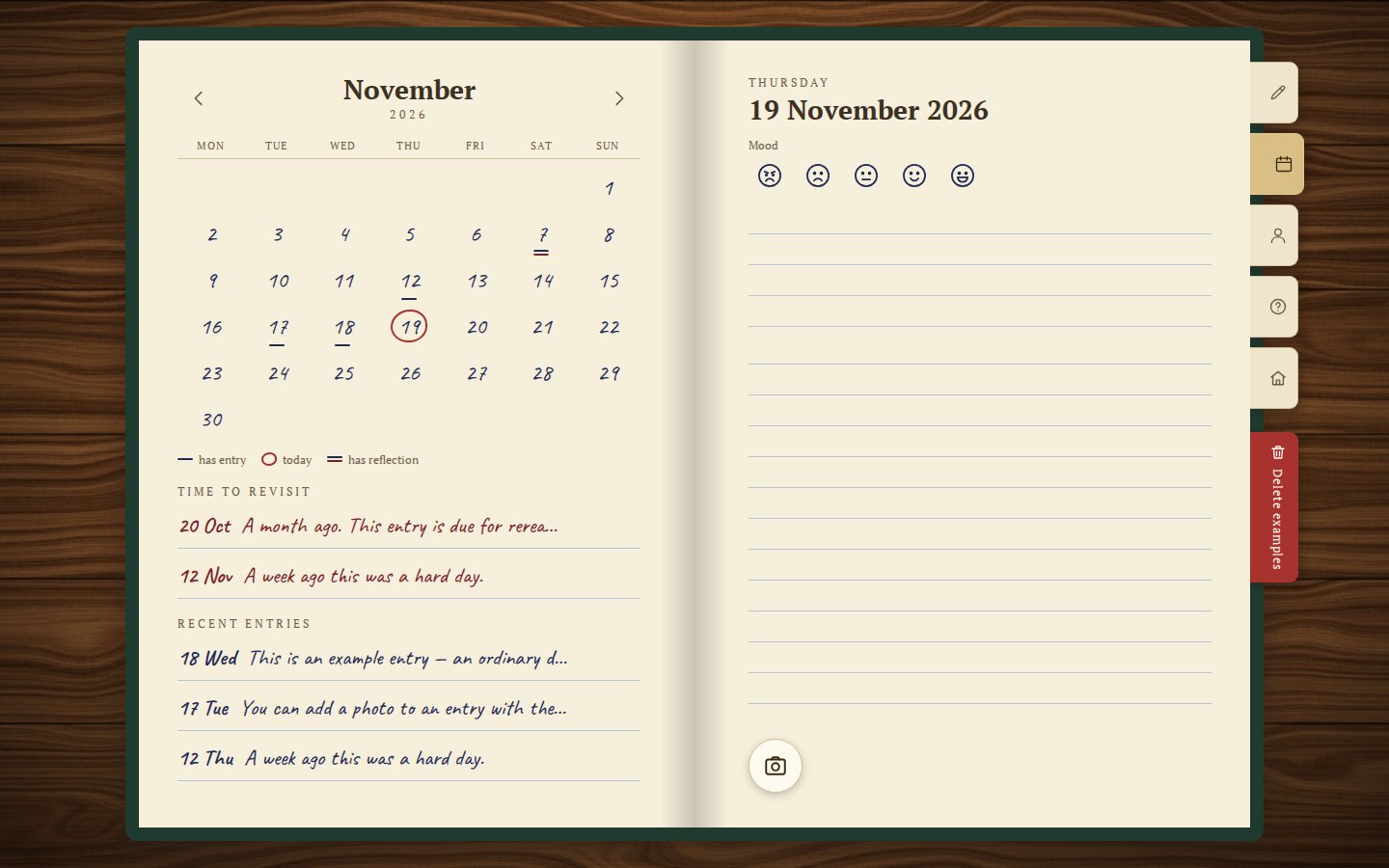
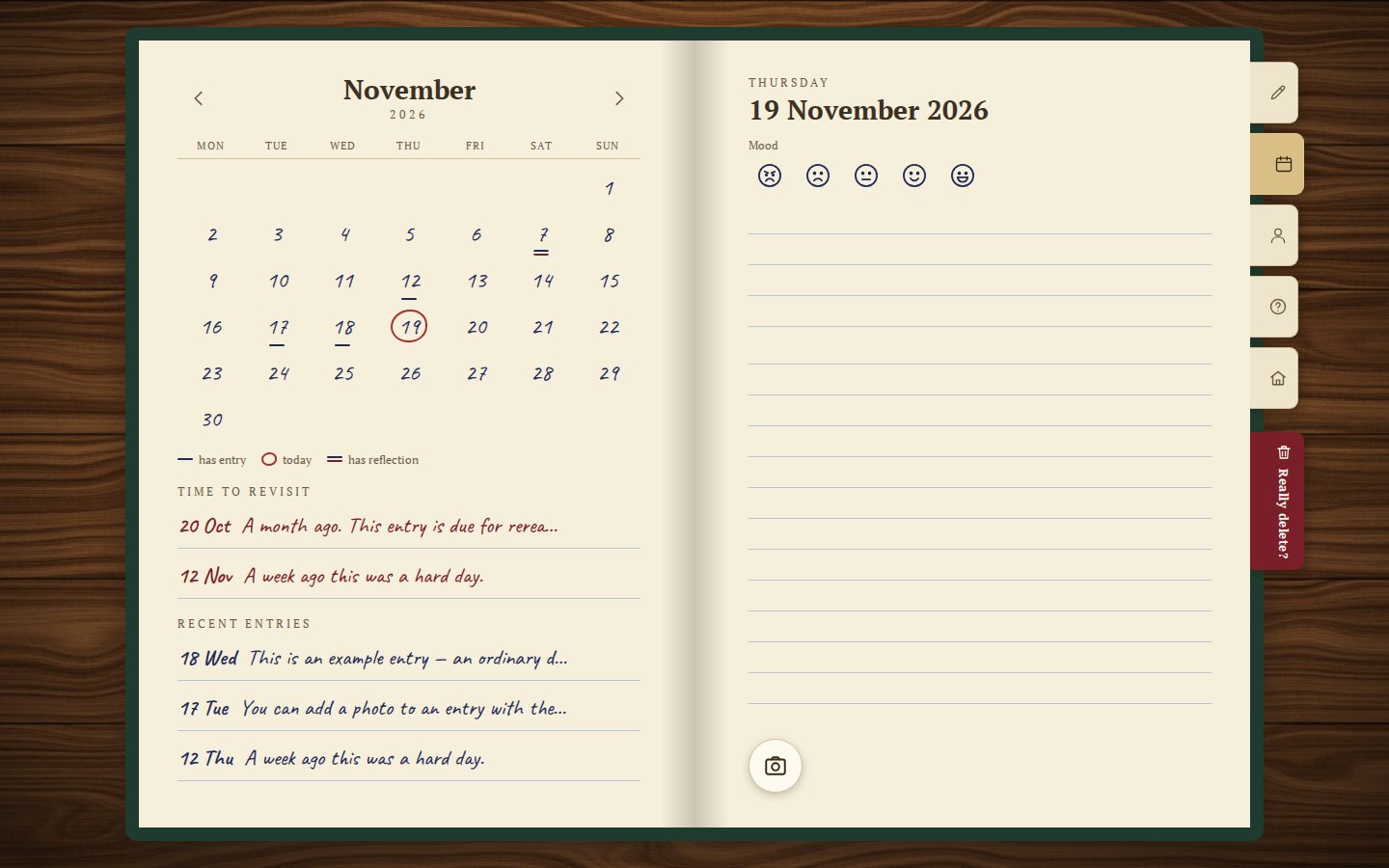
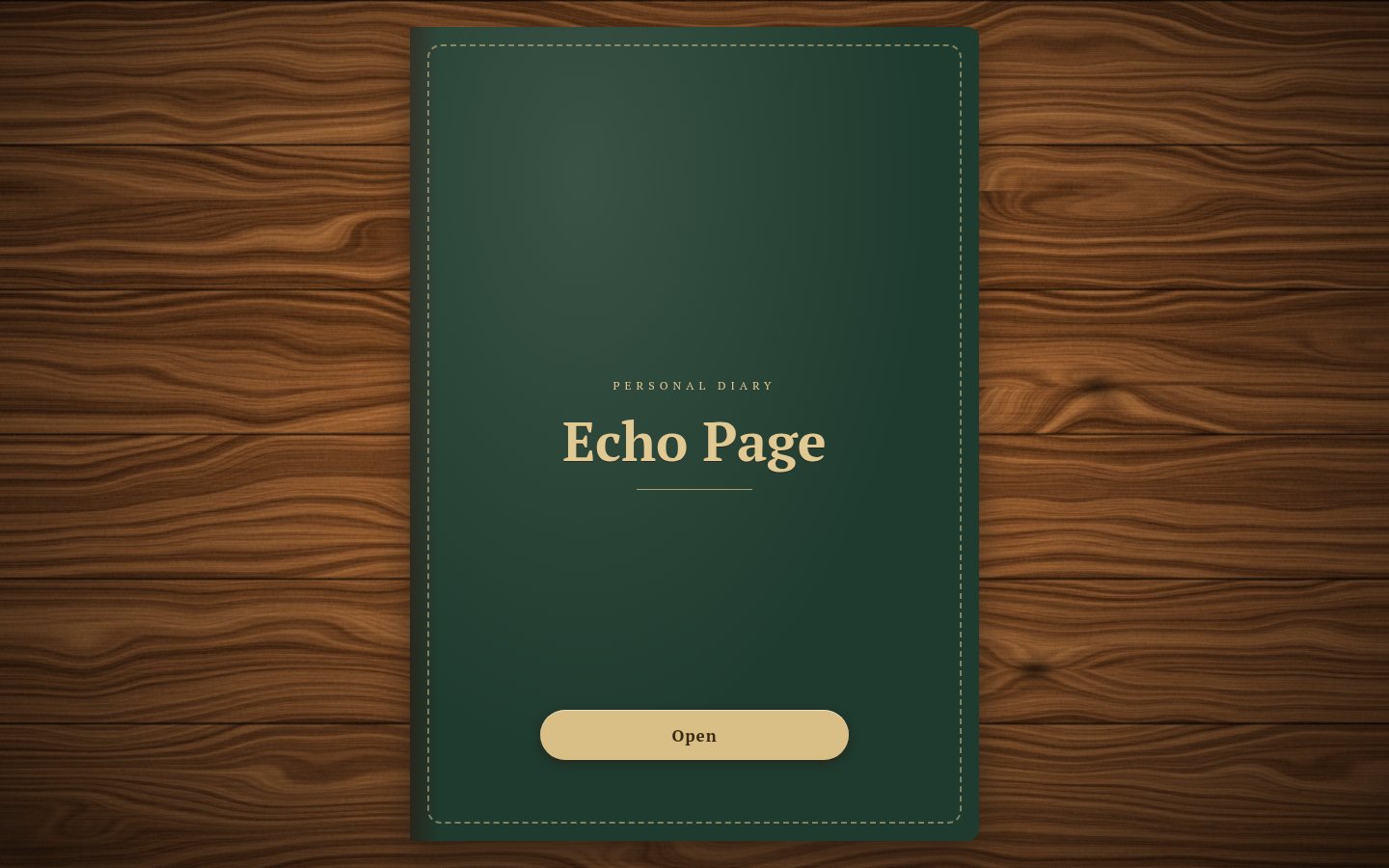
The diary greets you with its cover closed. Click “Open” and the spread appears: the calendar on the left, today on the right.
To the right of the spread are the bookmarks: “Today”, “Calendar”, “Profile”, “?” (this help) and a house (the site home). They are icons only; the name appears on hover. While the diary still holds the examples, there is also a red “Delete examples” bookmark below them, the only one with words.
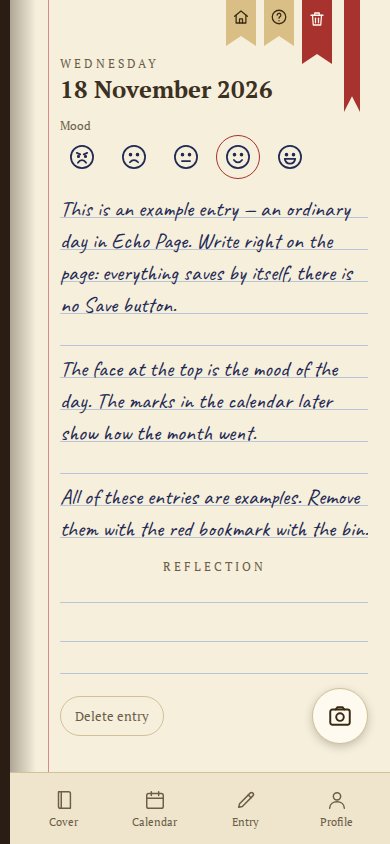
On a narrow screen, such as a phone, the diary shows one page at a time, and tabs at the bottom take the place of the bookmarks: “Cover”, “Calendar”, “Entry” and “Profile”.
Writing your day
On the day’s page, pick your mood (one of five faces) and write what mattered. The text appears in handwriting on lined paper, like a real notebook.
There is no Save button: everything saves itself as you write.
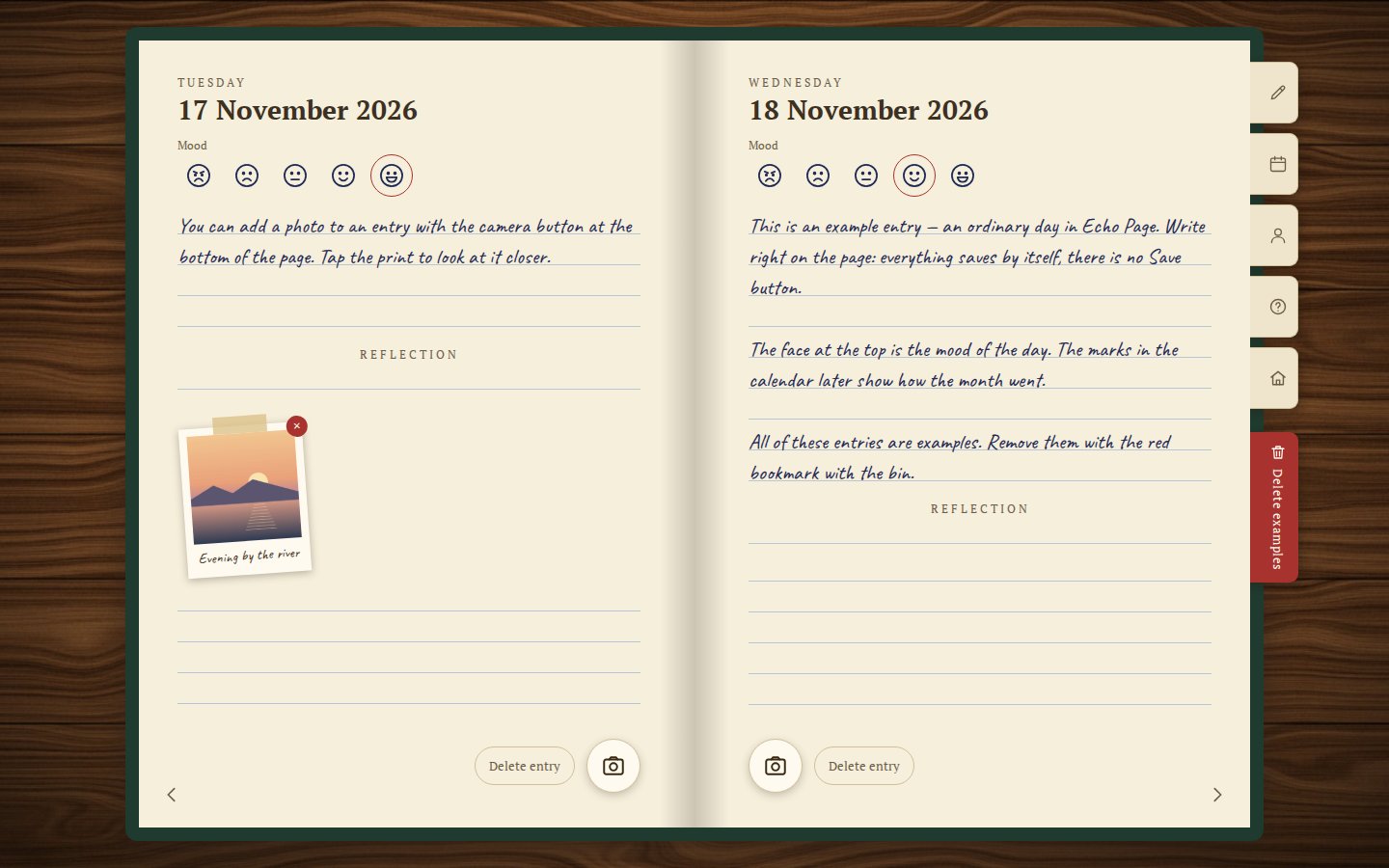
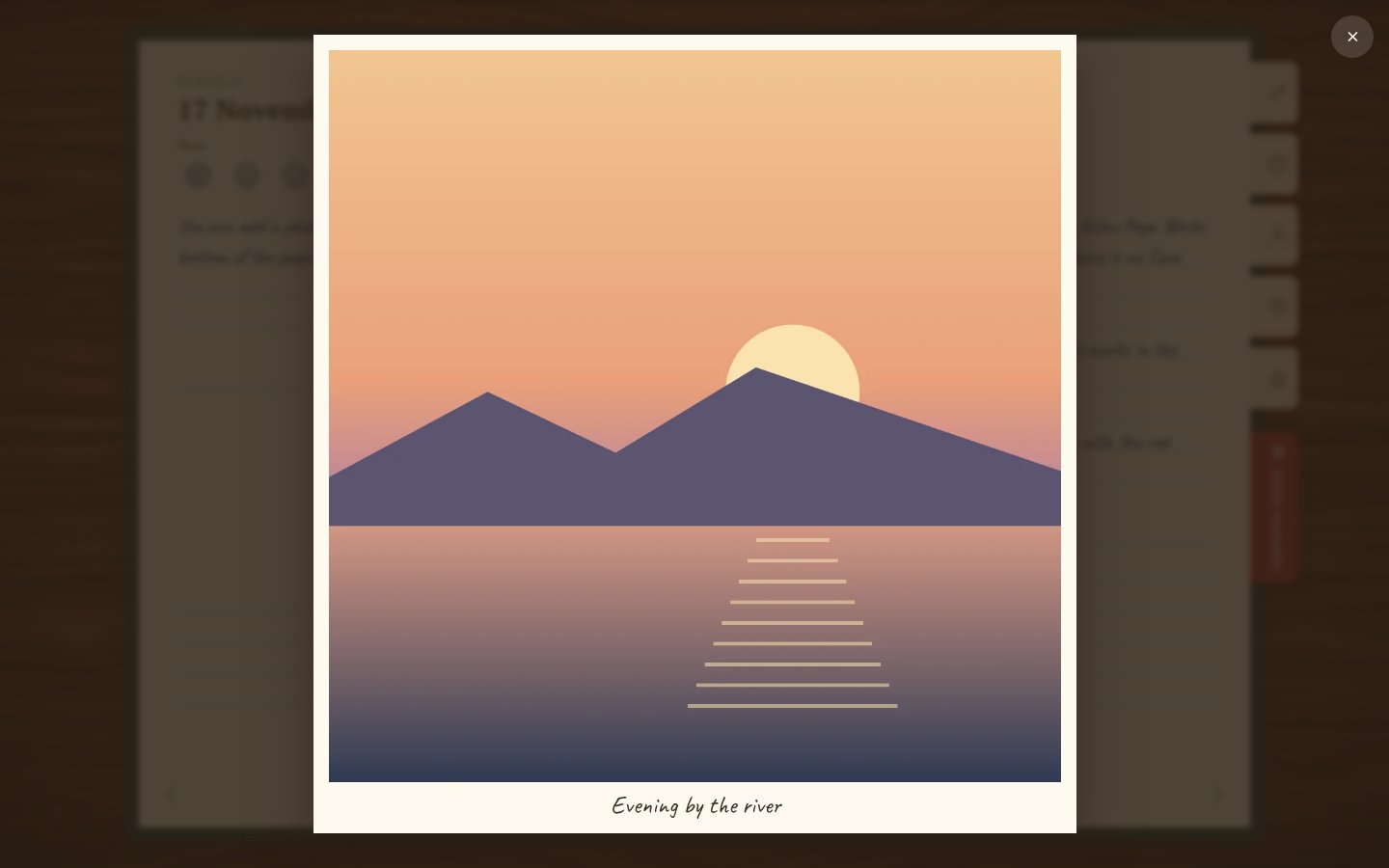
The camera button adds a photo. It is pasted in like a polaroid, with room for a caption underneath. Click a photo to see it full screen.
Turning pages
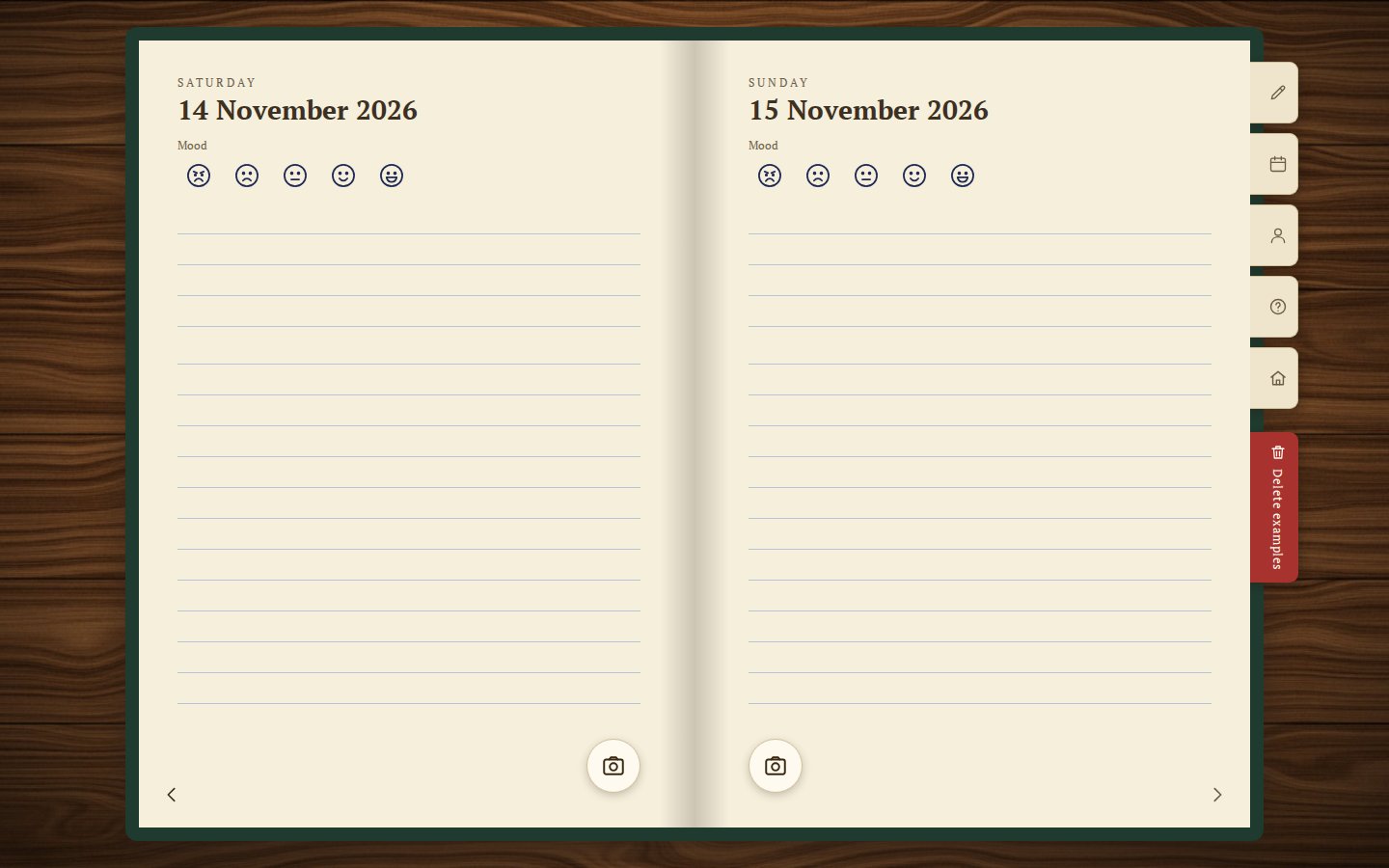
The arrows in the bottom corners and the ← → keys turn the pages. Each leaf holds two days, empty days included: the diary runs without gaps from your first entry to today.
You can add to a past day at any time. Future days can’t be written: you’ll write about tomorrow tomorrow.
Calendar and “Time to revisit”
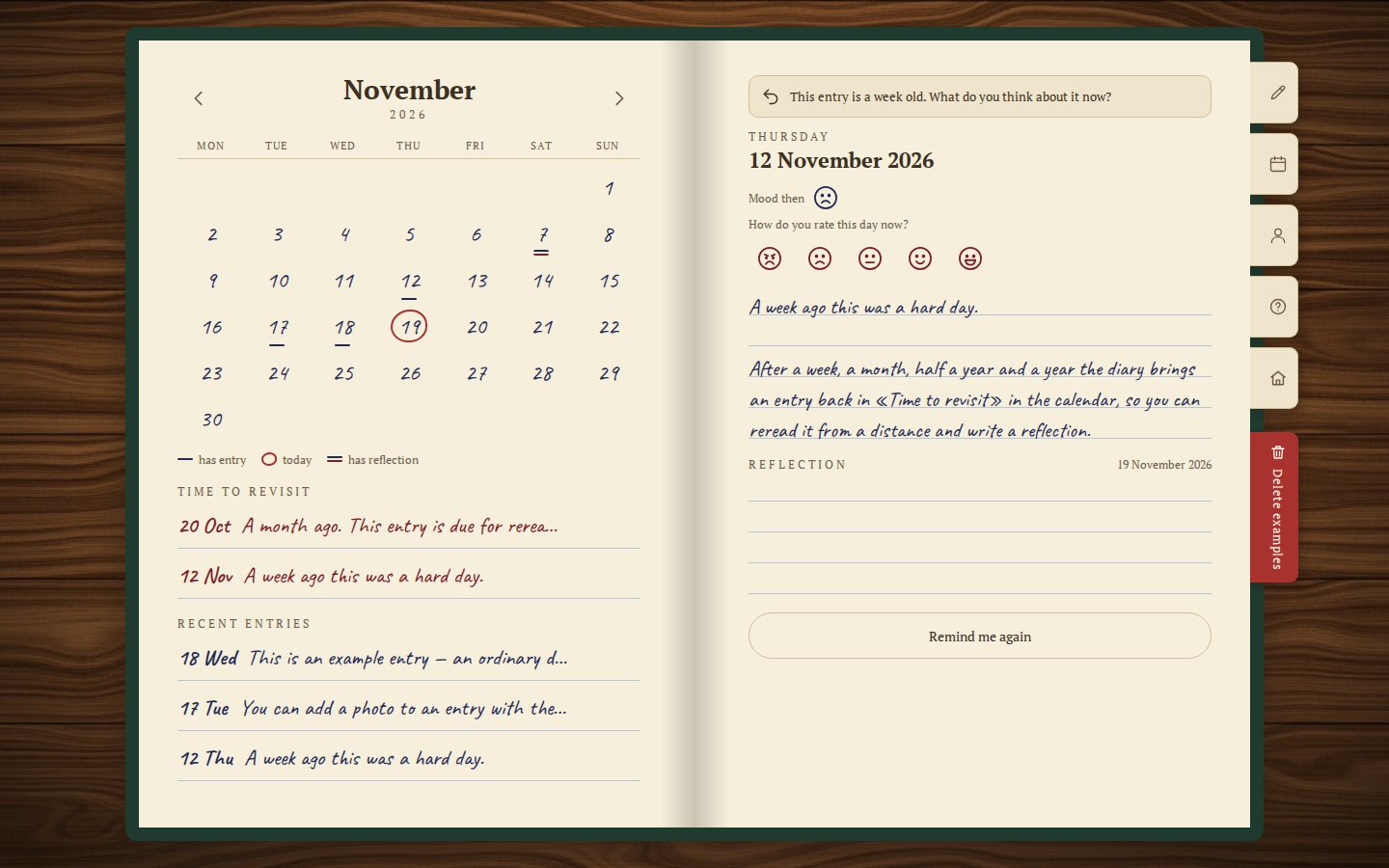
In the calendar, days with an entry are underlined. A double underline means the entry has a reflection. A red circle marks today. Click a day to open it.
Below the calendar is “Time to revisit”. The diary brings entries back here on its own: after 7 days, a month, half a year and a year. Reread the entry and see how that day looks to you now.
Further down, “Recent entries” lists your latest days so you can get back to them quickly.
Reflection
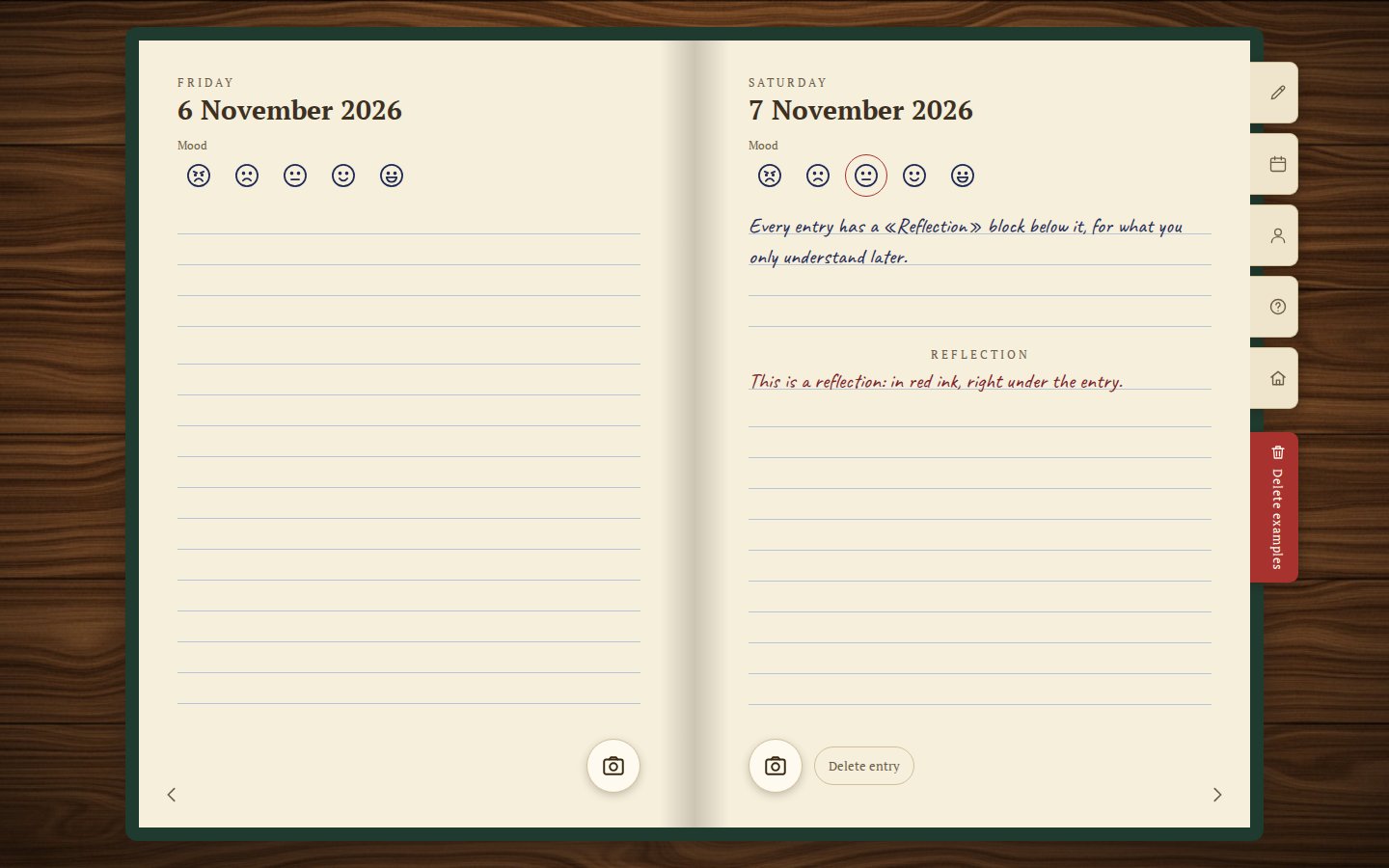
Under the entry’s text is a “Reflection” block. It is for what you understood later: you reread the entry a week or a year on and saw that day differently.
A reflection is written in red ink, like a note in the margin, and saves itself. In the calendar, such a day has a double underline.
Examples
On the very first launch, the diary fills five days with examples in your language, so you can see right away what entries, photos and reflections look like.
Once you’re comfortable, click the red “Delete examples” bookmark, then once more on “Really delete?”. The examples disappear and never come back.
Profile
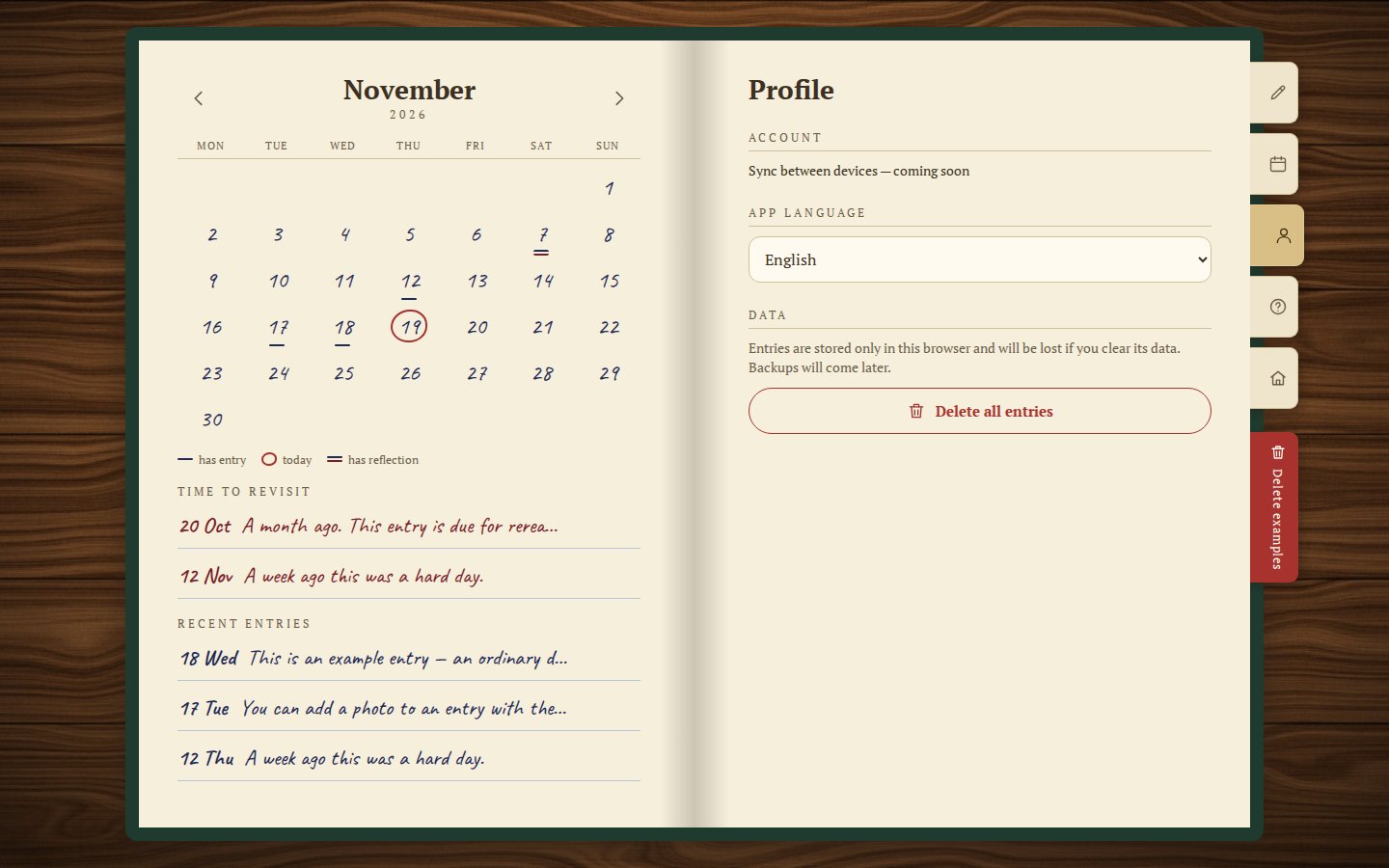
In the profile you choose the diary’s language. There are many, and the list keeps growing; the extension starts in your browser’s language.
There is also the “Delete all entries” button. It works on the second press, so the diary is never wiped by accident.
Entries are kept only in this browser. If you clear the browser’s data, the entries are gone.
The extension
The Echo Page extension adds an icon to the browser toolbar, and the icon opens your diary. Its entries are kept separately from the diary on the website.
The diary from the icon
Click the Echo Page icon and the diary opens in its own tab, on its closed cover as usual.
If the diary is already open, a second click on the icon doesn’t create another tab: it switches to the open one.
The extension’s entries are kept separately from the diary on the website: what you write in the extension won’t appear on the website, and the other way round.
The number on the icon
The red number on the icon is how many entries are waiting for you in “Time to revisit”. Open the diary, reread them and, if you like, add a reflection.
Click the icon and your diary opens (or switches to the one already open).
Write down today. The diary will remind you of the rest.